Category: Script Library
HTML Export Handler
Helper function to display html formatted output in the system browser.
The Export HTML Handler script for TapForms Pro exports form records into a single html file. It provides a view very similar to how TapForms Pro's Default Layout looks like. The aim of this script is to generate a html view of your records without the need to write code.
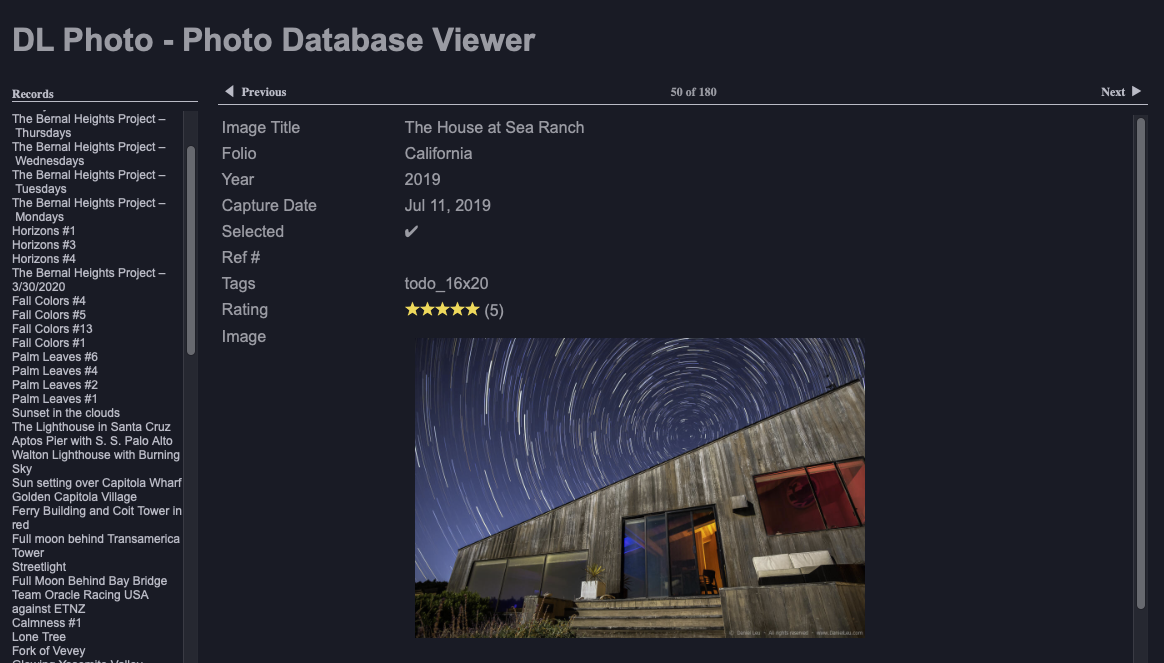
Thanks to the latest script enhancements, the TapForms Pro pages on my lab project site are now all generated from within TapForms Pro!
Usage
The HTML export is done using a separate setup/configuration script. This script is generated as a document script when running the Export HTML Handler script. You can create different setup scripts based on the type of export. Execute the setup script to launch the html code generation.
Configuration Options
- outputDirectory: Defines output directory.
'outputDirectory' : 'exportHTML',
- sourceForm: The export scripts works on the current form. If set, a predefined source is used
'sourceForm' : 'Clients',
- savedSearch: if set, records are fetched from the save search instead of using all records. 'sourceForm' has to set accordingly.
'savedSearch' : 'Updated Today',
- projectName: Defines a project name which is used in naming generated files. Per default, the generated files are named index.html, data.json and script.js. Using the projectName setting, the files use the 'projectName'.ext format. style.css doesn't change!
'projectName' : 'clients',
- dateLocale: Define date local string when processing time and date fields. Examples: 'en-US', "en-GB", 'en-CA', 'fr-FR', 'de-DE'.
'dateLocale': 'en-US',
- loadWhenDone: Define if webbrowser should load page when export is complete ['yes'|'no']
'loadWhenDone': 'yes',
- enableMarkdown: markdown fields can automatically be rendered. If renderer is not found in one of the forms, it is automatically installed. This setting enables the rendering of Markdown.
'enableMarkdown': 'yes',
- customCSS: Set if you want to use your own css style sheet. This will point to the custom CSS file located in the output directory.
'customCSS': 'mycustom.css',
- embeddedCSS: Define embedded custom CSS code. This will overwrite but not replace the default CSS code.
'embeddedCSS': `
     body {
         background-color : white;
         color: black;
     }
     /* Styling markdown fields */
     .tfp-markdown {
        font-size: 14px;
     }
     .tfp-markdown h1 {
        color: red;
        font-size: 16px;
     }
 `,
- htmlHeader: Define custom HTML header. If defined, it will replace the default header.
  'htmlHeader': `<!DOCTYPE html>
      <html lang="en">
     <head>
         <meta charset="UTF-8">
         <meta name="viewport" content="width=device-width, initial-scale=1.0">
         <title>Export HTML Template</title>
         <link rel="stylesheet" href="style.css">
     </head>
     <body> `,
- htmlFooter: Define custom HTML footer. If defined, it will replace the default footer.
'htmlFooter': `
    <div class="footer">
        <p>Created by ExportHTML on Aug 13, 2024</p>
    </div>
    </body>
    </html>
 `,
Tips&Tricks
Processing multiple forms at the same time
With just a few changes to the setup file, it's possible to process multiple forms during the same export.
// define the default parameters. Use 'var' instead of 'const'
var EXPORTHTML_CONFIG = {
    // define the location where the results are stored
    'outputDirectory': 'exportHTML/main_clients',
    ...
};

// Load Export HTML Handler script
document.getFormNamed("Scripts").runScriptNamed('Export HTML Handler');

function exportMultiple(){
    // define list of forms to be exported
    let exportList = ['Clients', 'Projects'];

    // loop over them
    for (formName of exportList){
        console.log("*** Exporting '" + formName +"'");
        EXPORTHTML_CONFIG.sourceForm = formName;
        EXPORTHTML_CONFIG.projectName = formName;

        // Adjust other parameters as needed. Maybe
        // ...

        // Call export handler
        Export_Html_Handler();
    }
}

exportMultiple();
Processing multiple Saved Searches at the same time
This is a small variation of the exporting multiples forms as the same time. With a small code change, multiple Saves Searches can be exported with one operation. Instead of looping over different forms, here we loop over different Saved Searches. If needed, the two could be combined!
// define the default parameters. Use 'var' instead of 'const'
var EXPORTHTML_CONFIG = {
    // define the location where the results are stored
    'outputDirectory': 'exportHTML/main_clients',
    'sourceForm': 'Contacts', // Use Contacts form
    ...
};

// Load Export HTML Handler script
document.getFormNamed("Scripts").runScriptNamed('Export HTML Handler');

function exportMultiple(){
    // define list of savedSearch items to be exported
    let exportList = ['Updated today', 'Updated yesterday'];

    // loop over them
    for (item of exportList){
        console.log("*** Exporting '" + item +"'");
        EXPORTHTML_CONFIG.savedSearch = item;
        EXPORTHTML_CONFIG.projectName = item;

        // Adjust other parameters as needed. Maybe
        // ...

        // Call export handler
        Export_Html_Handler();
    }
}

exportMultiple();
Creating an Index Page when exporting multiple Forms / Saved Searches
This example shows how to create an index page when exporting multiples forms.
// define the default parameters. Use 'var' instead of 'const'
var EXPORTHTML_CONFIG = {
    // define the location where the results are stored
    'outputDirectory': 'exportHTML/main_clients',
    'sourceForm': 'Contacts', // Use Contacts form
    ...
};

// Load Export HTML Handler script
document.getFormNamed("Scripts").runScriptNamed('Export HTML Handler');

function exportMultiple(){
    // define list of forms to be exported
    let exportList = ['Clients', 'Projects'];
    let html = "";

    // loop over them
    for (formName of exportList){
        console.log("*** Exporting '" + formName +"'");
        EXPORTHTML_CONFIG.sourceForm = formName;
        EXPORTHTML_CONFIG.projectName = formName;
        Export_Html_Handler();

        // create link item html code
        let link = formName.replace(' ','-')+".html";
        html += `<li><a href="${link}">${formName}</a></li>`;
    }

    // function that is called by exportIndexPage.
    // returns: body content, between header and footer sections
    function indexPageBody(){
        // Create index page body
        return `<h1>Form Index Page</h1>
            <div><ul>
                ${html}
            </ul></div>
        `;
    }

    // create and export index page.
    exportIndexPage("Form Index", outputDir, "index.html", indexPageBody);
}

exportMultiple();
Installation
The HTML Export Handler script is installed using the scriptHandler script about which you can learn more over here. It is installed in the Scripts form.
Dependencies
Following helper scripts are needed
- Showdown
- Highlight
These scripts can be installed using scriptHandler.
ChangeLog
Link to ChangeLog
Author
- Daniel Leu, info@danielleu.com
Do you like this script? Are you using it? Please consider supporting me by buying me a coffee!

Thanks!
Last modified: Apr 24, 2025 6:26:14 PM
Tap Forms Consulting
Do you need help writing scripts for your Tap Forms Pro database? I'm happy to help you. Contact me to discuss your idea or project.
Web Design Consulting
Do you need help designing your web site or getting Backlight working the way you want? Contact me to discuss your needs.
Buy me a Coffee
If you like what I share here, please consider buying me a coffee or a print. This helps keeping me motivated to continue posting. Thank you!